
Job Openings List
HubSpot Module — Setup & Usage Guide
1. Module Location
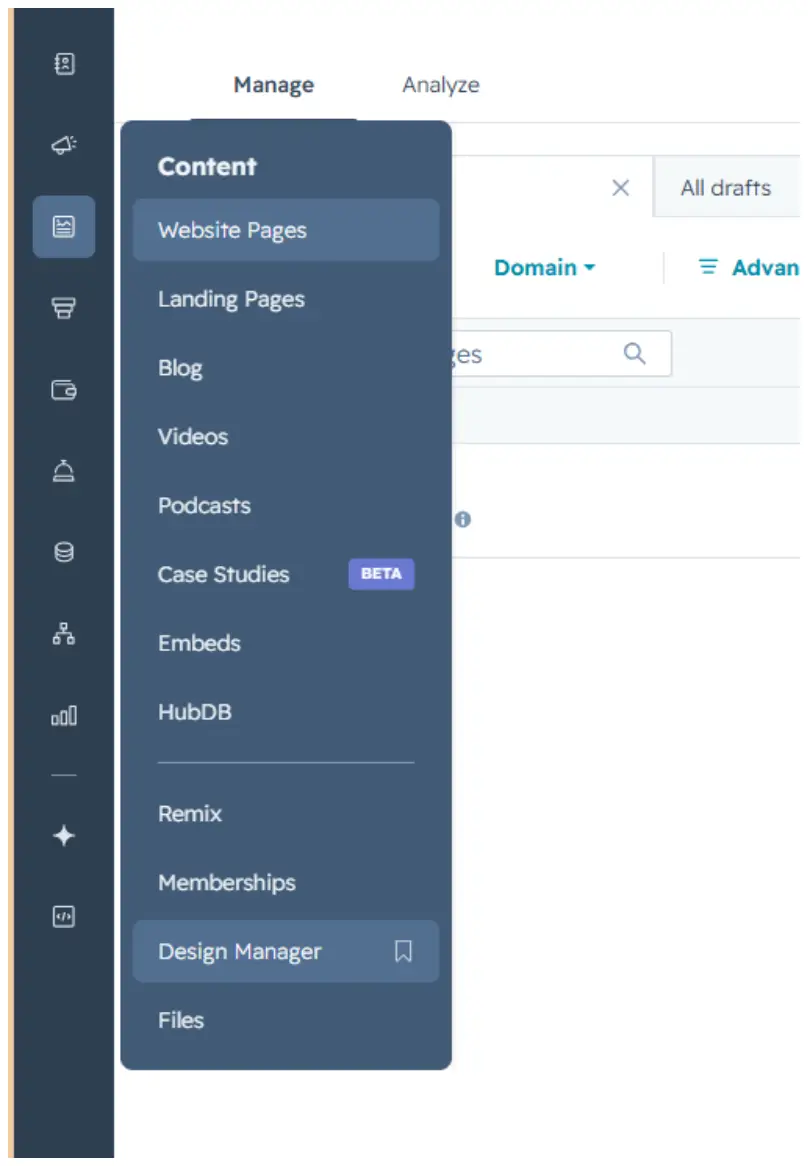
The Job Openings List module is saved in the Design Manager, under Content.
Path: Manage → Content → Design Manager
2. How to Use the Module
Step 1 — Find the module
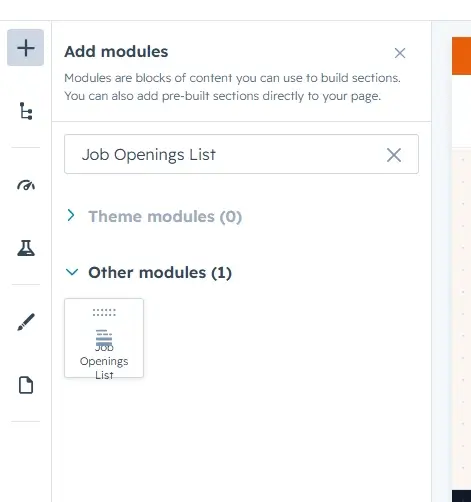
Click the + icon in the page editor to open Add modules, then search for the module name “Job Openings List.”
Step 2 — Add it to the page
Drag the module from the search results panel onto the desired section of the page.
Step 3 — Edit the content
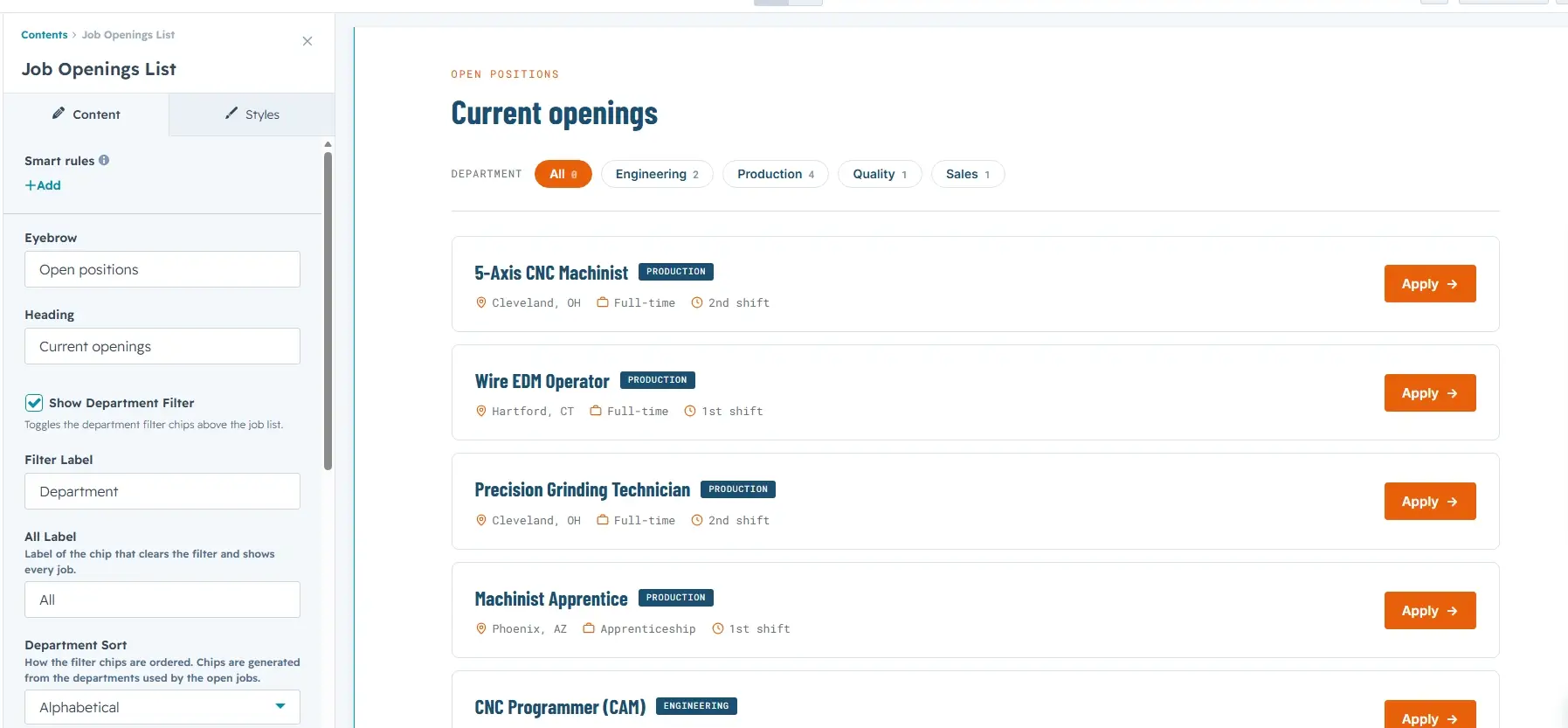
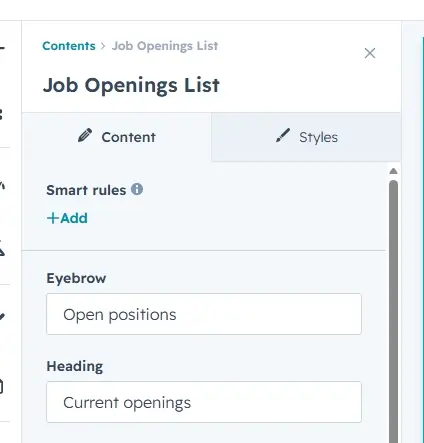
Open the module’s Content tab to edit the header fields: Eyebrow (small uppercase label above the heading) and Heading (the main section title).
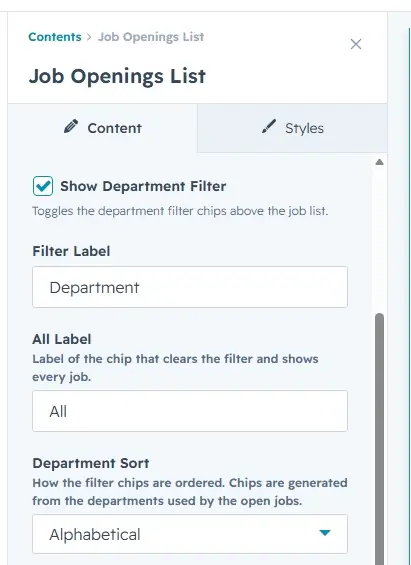
Toggle the Show Department Filter checkbox to show or hide the filter chip bar above the job list. When enabled you can customise the Filter Label (defaults to “Department”), the All Label (“All”), and the Department Sort order (Alphabetical or Job List Order).
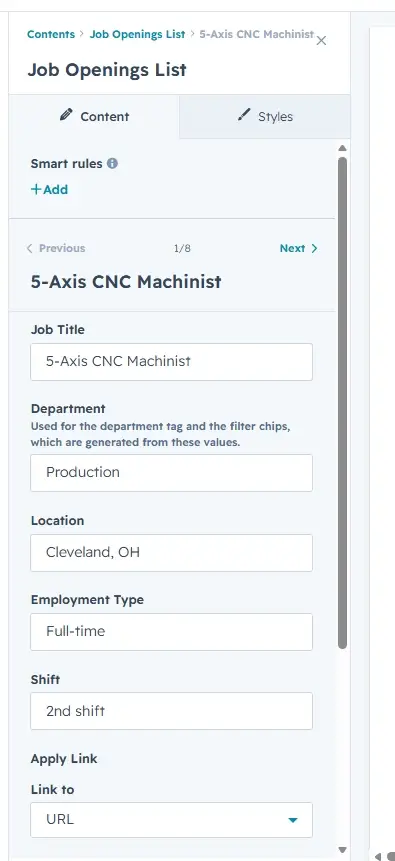
Add and edit job listings in the Open Jobs repeatable group. Each job has seven fields: Job Title, Department (used for the tag and filter chips), Location, Employment Type, Shift, Apply Link, and Apply Label. Hover over an item and click the pencil icon to edit it. You can add up to 50 jobs.
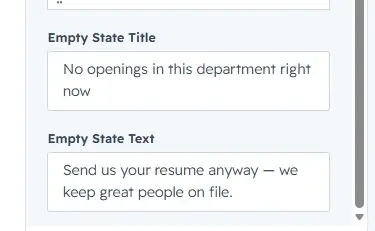
Below the jobs list, set the Empty State Title and Empty State Text. These appear inside a dashed border box when a department filter has no matching jobs.
Step 4 — Customize the styling
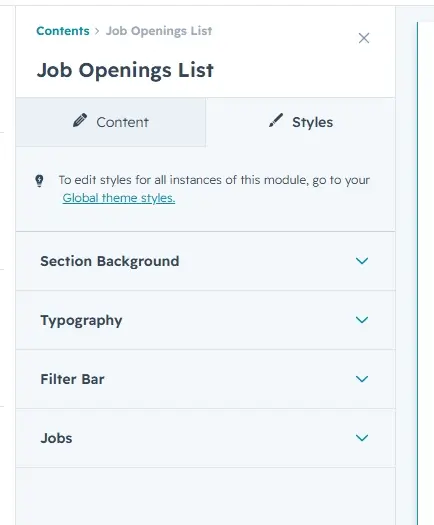
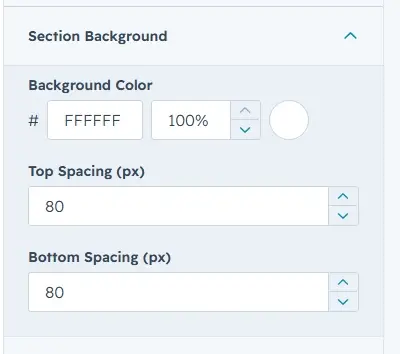
Switch to the Styles tab to adjust the module’s appearance. Styling is organized into four collapsible groups: Section Background, Typography, Filter Bar, and Jobs.
Section Background
Set the Background Color, and the Top / Bottom Spacing (in px, 0–200) around the section.
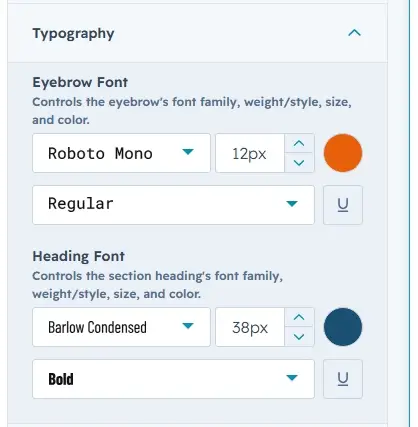
Typography
Control the font family, size, weight, and color for the Eyebrow and the section Heading.
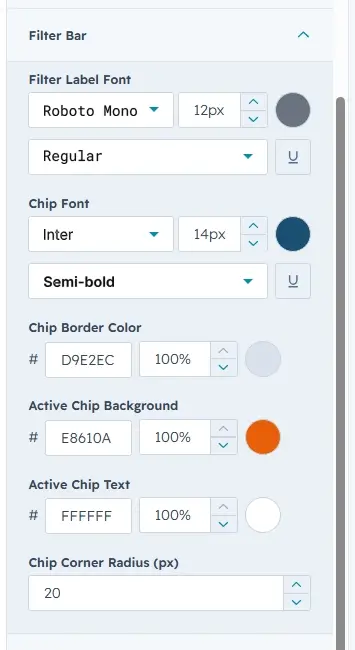
Filter Bar
Customize the Filter Label Font, Chip Font, Chip Border Color, Active Chip Background, Active Chip Text, and Chip Corner Radius (0–40 px).
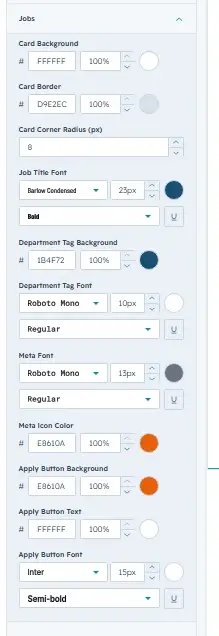
Jobs
Style the job cards: Card Background, Card Border, Card Corner Radius (0–40 px), Job Title Font, Department Tag Background / Font, Meta Font / Icon Color, and Apply Button Background / Text / Font.
3. Quick Reference
- Add module: Search “Job Openings List” → drag onto page
- Edit content: Content tab → Eyebrow / Heading
- Toggle filter: Content tab → Show Department Filter checkbox
- Edit a job: hover → pencil icon → Job Title / Department / Location / Employment Type / Shift / Apply Link / Apply Label
- Job limit: 1–50 items
- Department sort: Alphabetical or Job List Order
- Empty state: shown when a filter has no matching jobs; edit title and text in Content tab
- Edit styling: Styles tab → Section Background / Typography / Filter Bar / Jobs