
Business Hours
HubSpot Module — Setup & Usage Guide
1. Module Location
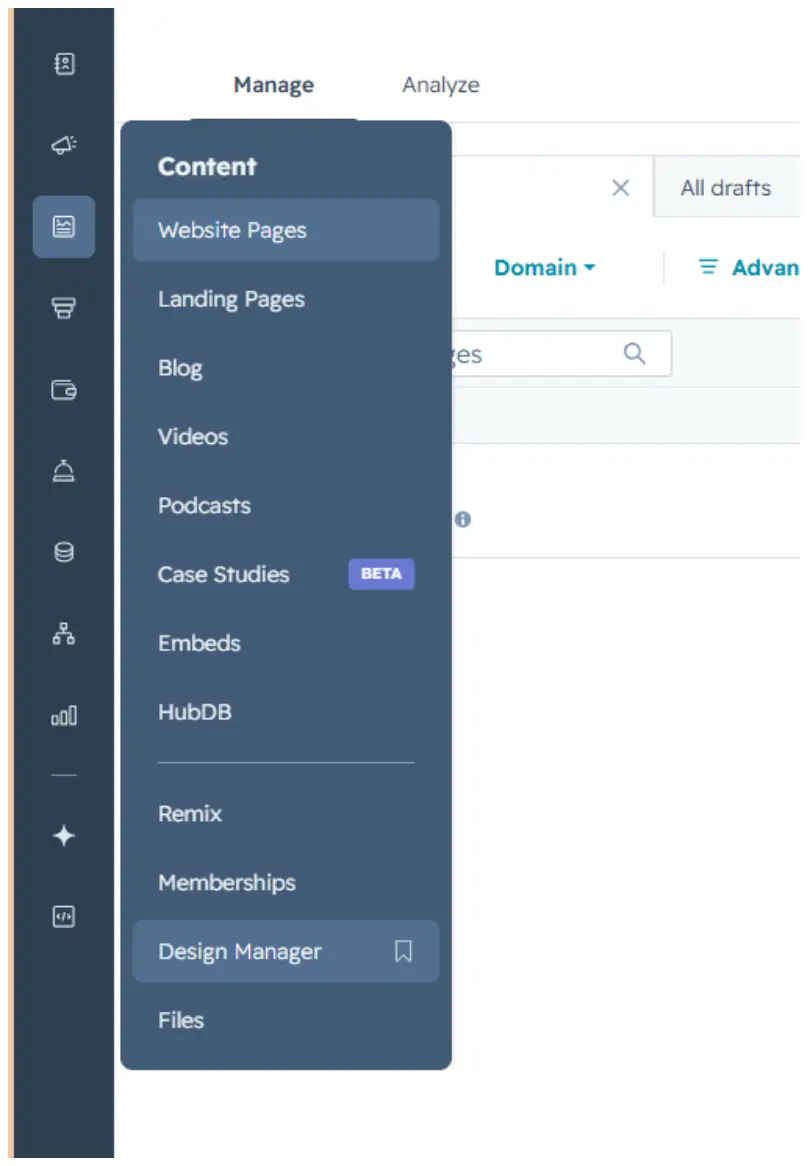
The Business Hours module is saved in the Design Manager, under Content.
Path: Manage → Content → Design Manager
2. How to Use the Module
Step 1 — Find the module
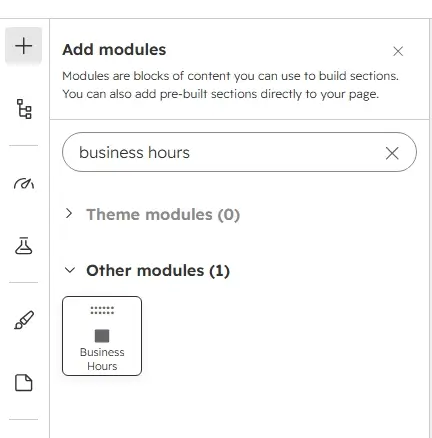
Click the + icon in the page editor to open Add modules, then search for the module name “Business Hours.”
Step 2 — Add it to the page
Drag the module from the search results panel onto the desired section of the page.
Step 3 — Edit the content
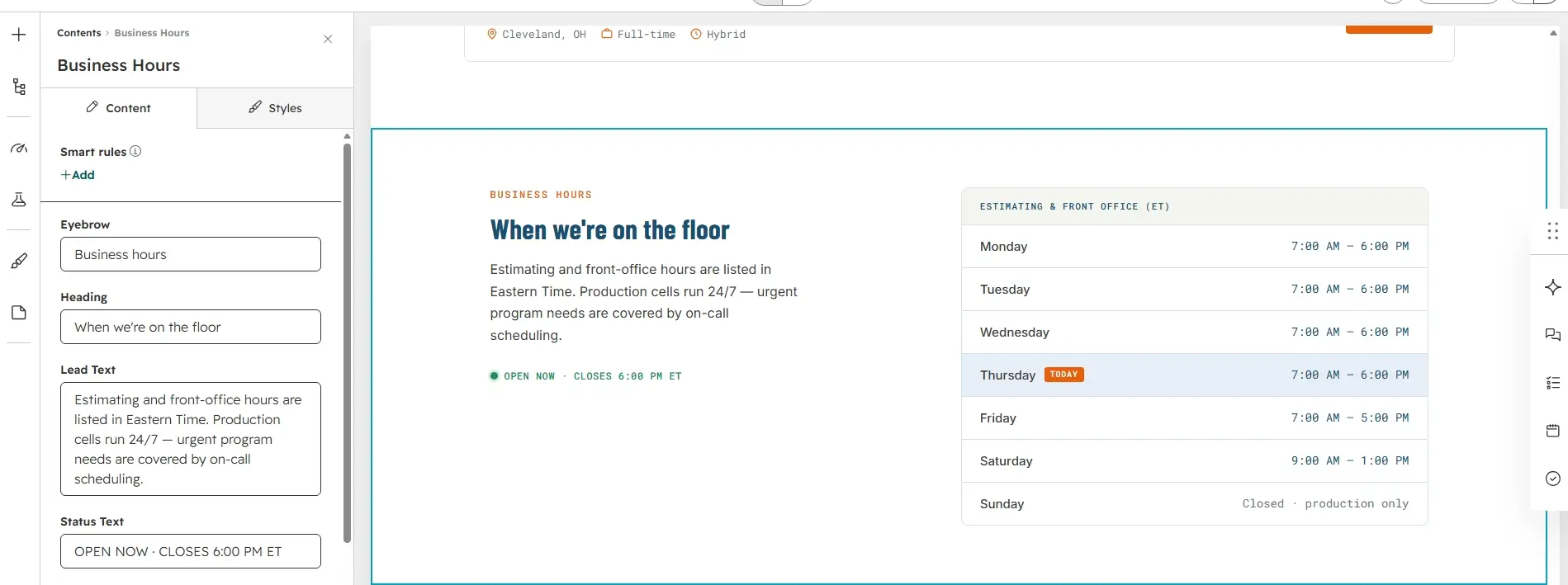
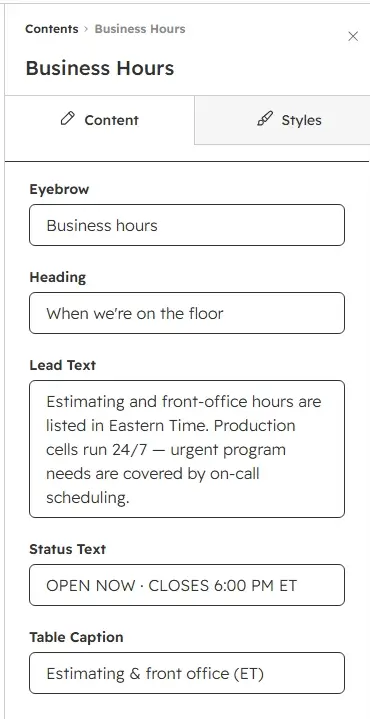
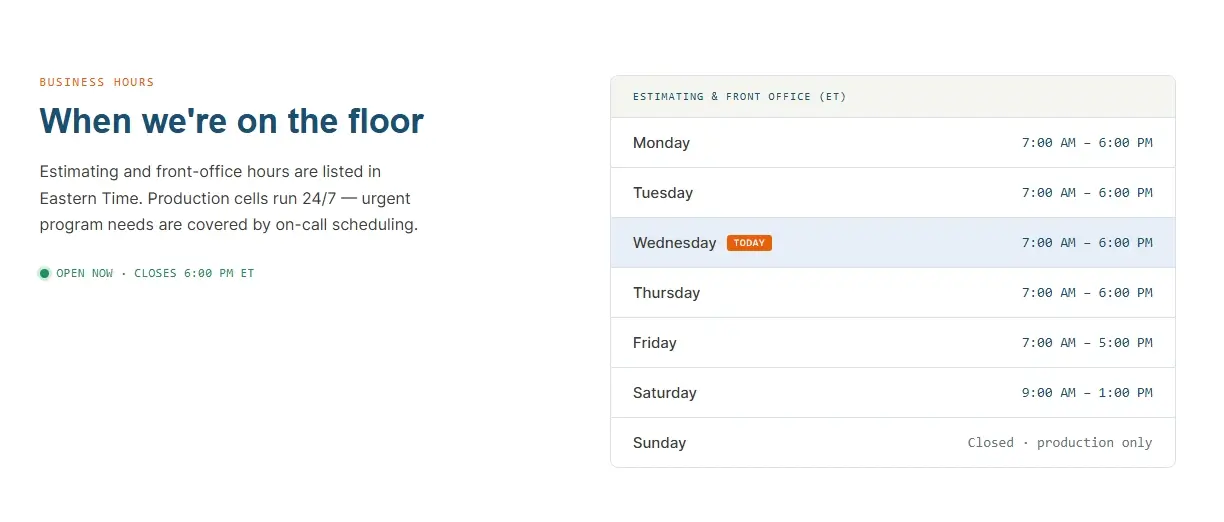
Open the module's Content tab to edit the Eyebrow, Heading, Lead Text, Status Text (the open-now line, e.g. “OPEN NOW · CLOSES 6:00 PM ET”), and the Table Caption above the hours table.
To update an individual day, hover over the item in the Hours Rows list and click the pencil icon that appears. Each row has four fields: Day (the display label), Time (the display text, e.g. “7:00 AM – 6:00 PM” or “Closed”), Day of Week (Monday–Sunday), and Is Closed (checkbox that switches the time to the muted closed-day color). Use the Previous / Next controls at the top to move between items. You can keep 1–7 rows.
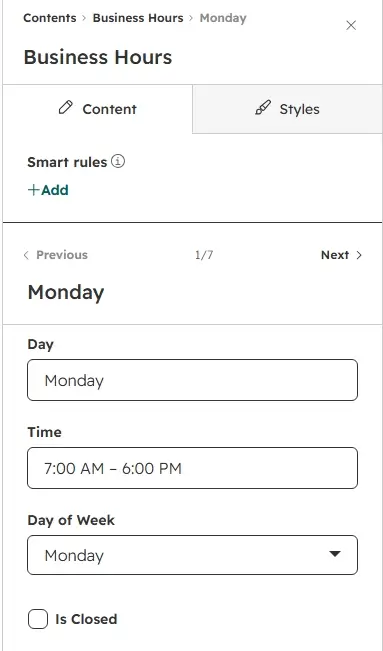
Step 4 — Customize the styling
Switch to the Styles tab to adjust the module's appearance. Styling is organized into three collapsible groups: Section Background, Typography, and Hours Table.
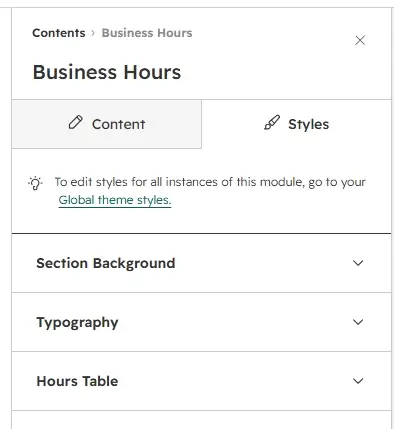
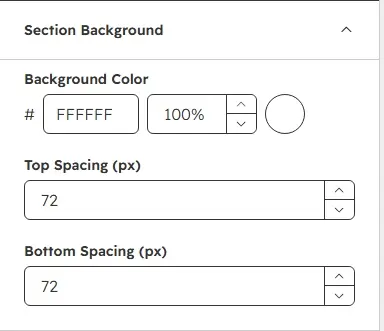
Section Background
Set the Background Color and the Top / Bottom Spacing (in px, 0–200) around the section.
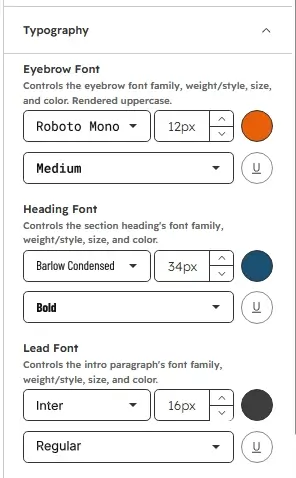
Typography
Control the font family, size, weight, and color for the Eyebrow, section Heading, Lead paragraph, Status line, Table Caption, Day column, and Time column independently.
Hours Table
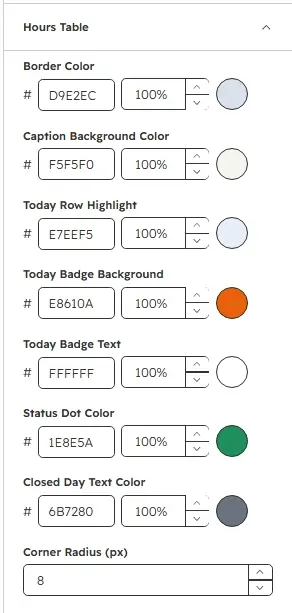
Set the table Border Color, Caption Background Color, Today Row Highlight, Today Badge Background and Text colors, Status Dot Color, Closed Day Text Color, and the Corner Radius (px, 0–40).
Step 5 — Review the finished section
Preview the page to confirm the intro copy, status line, and hours table read correctly, and check that the current weekday row carries the TODAY badge.
3. Quick Reference
- Add module: Search “Business Hours” → drag onto page
- Edit content: Content tab → Eyebrow / Heading / Lead Text / Status Text / Table Caption / Hours Rows
- Edit a single day: hover → pencil icon → Day / Time / Day of Week / Is Closed
- Rows limit: 1–7 items
- Today highlight: automatic — matches Day of Week against the visitor's current weekday
- Edit styling: Styles tab → Section Background / Typography / Hours Table