
Interactive Facility Map
HubSpot Module — Setup & Usage Guide
1. Module Location
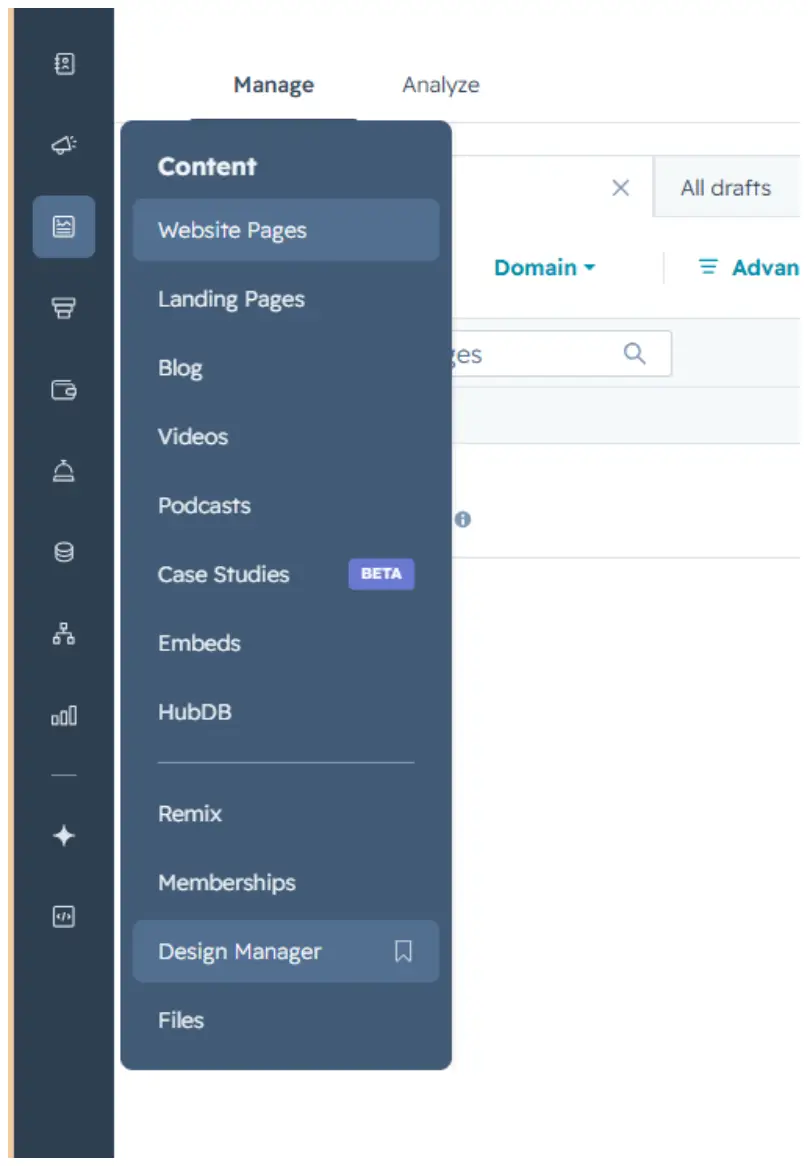
The Interactive Facility Map module is saved in the Design Manager, under Content.
Path: Manage → Content → Design Manager
2. How to Use the Module
Step 1 — Find the module
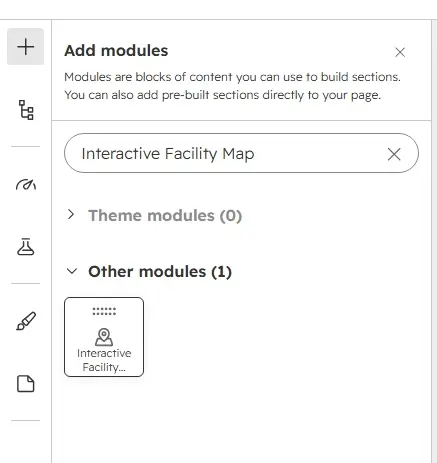
Click the + icon in the page editor to open Add modules, then search for the module name “Interactive Facility Map.”
Step 2 — Add it to the page
Drag the module from the search results panel onto the desired section of the page.
Step 3 — Choose a variant
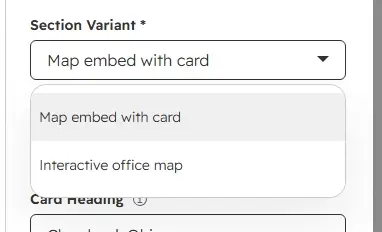
The module offers two layout variants. Open the Content tab and select Section Variant:
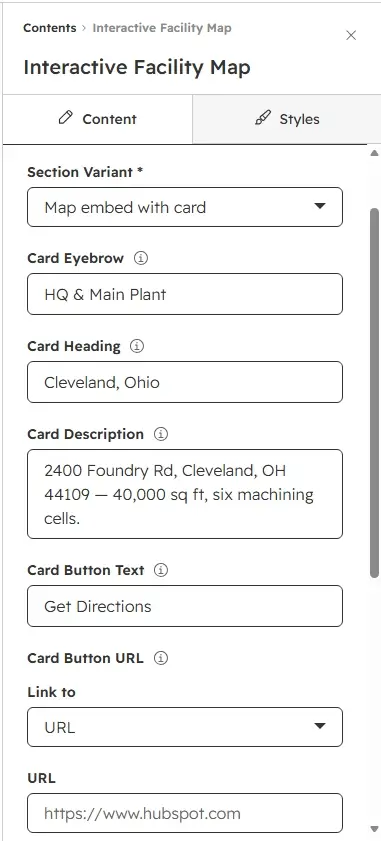
- Map embed with card — a Google Maps embed (or stylized CSS placeholder) with a floating info card, zoom controls, and a single pin. Ideal for a single-location page.
- Interactive office map — a selectable office list sidebar alongside a CSS map with numbered pins and an info card. Best for multi-location pages.
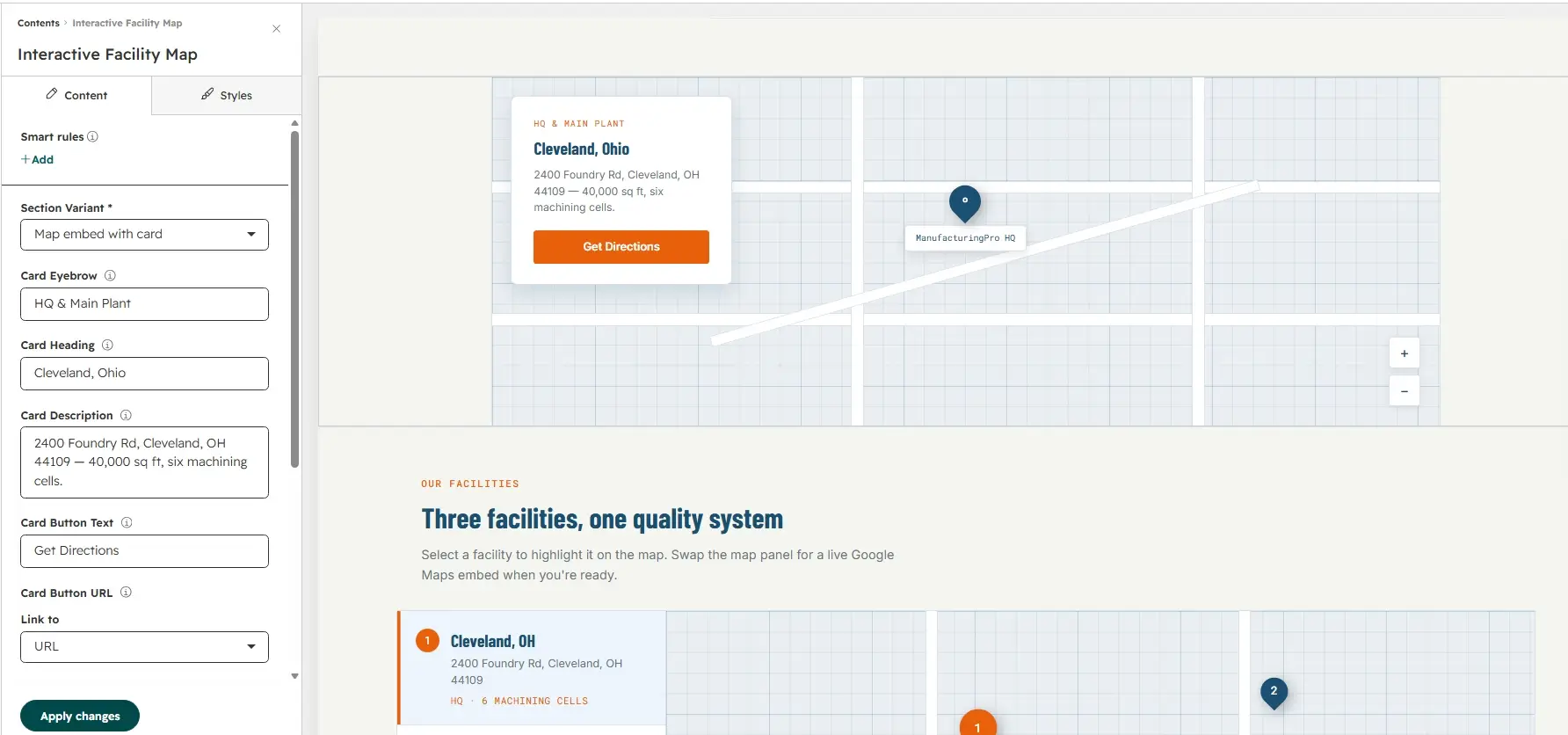
Step 4 — Edit the content
If you chose “Map embed with card”
Fill in the Card Eyebrow, Card Heading, Card Description, Card Button Text, and Card Button URL. Optionally set a Pin Label and paste a Google Maps embed URL into the Embed URL field to replace the stylized placeholder with a live map.
If you chose “Interactive office map”
Edit the Eyebrow, Heading, Sub Text, and Directions Button Text. Then add or edit items in the Offices list (up to 8).
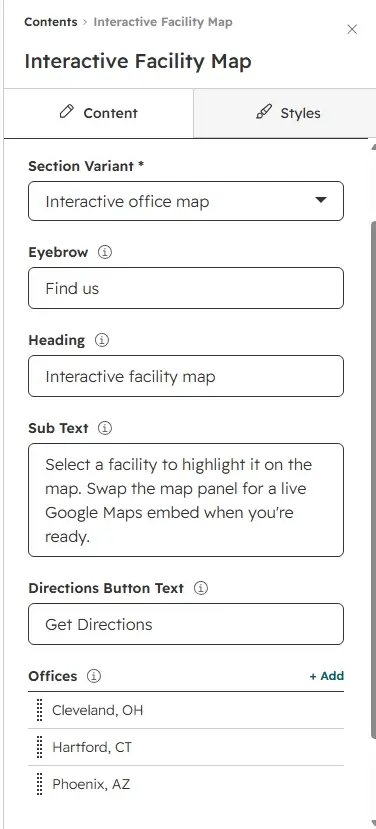
To update an individual office, hover over the item in the Offices list and click the pencil icon that appears.
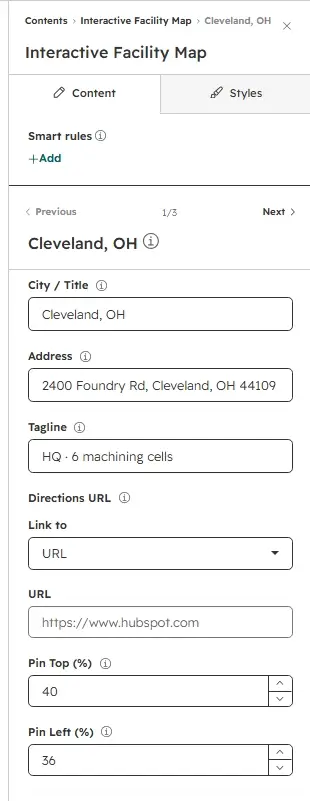
Editing an office opens a detail panel where you can set its City / Title, Address, Tagline, Directions URL, Pin Top (%), and Pin Left (%). Use the Previous / Next controls at the top to move between offices.
Step 5 — Customize the styling
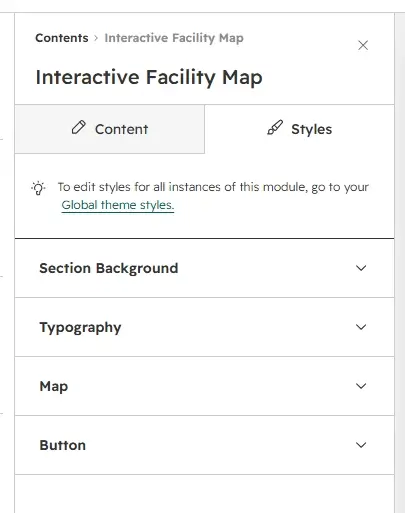
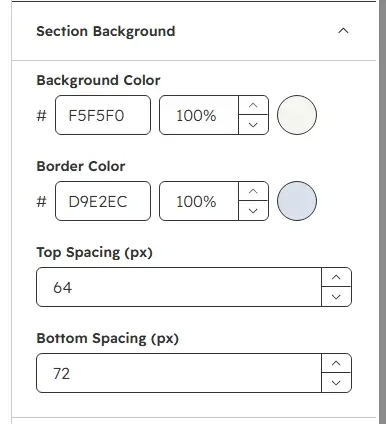
Switch to the Styles tab to adjust the module's appearance. Styling is organized into four groups: Section Background, Typography, Map, and Button.
Section Background
Set the background color, border color, and the top/bottom spacing (in px) around the module.
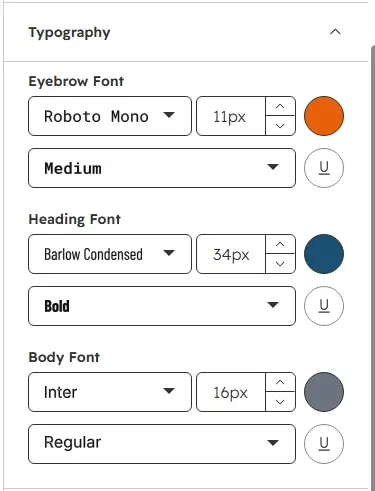
Typography
Control the font family, size, weight, and color independently for the Eyebrow, Heading, and Body text.
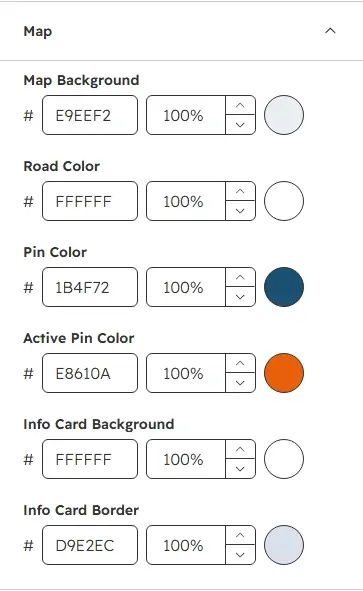
Map
Customize the map background color, road color, pin color, active pin color, info card background, and info card border.
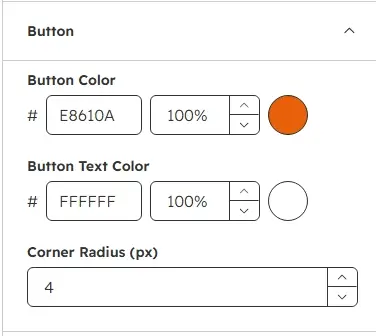
Button
Set the button background color, text color, and corner radius (px).
3. Quick Reference
- Add module: Search “Interactive Facility Map” → drag onto page
- Choose variant: Content tab → Section Variant → “Map embed with card” or “Interactive office map”
- Embed variant fields: Card Eyebrow / Heading / Description / Button Text / Button URL / Pin Label / Embed URL
- Interactive variant fields: Eyebrow / Heading / Sub Text / Directions Button Text / Offices list
- Edit an office: hover → pencil icon → City / Address / Tagline / Directions URL / Pin position
- Edit styling: Styles tab → Section Background / Typography / Map / Button
- Google Maps embed: paste a Maps embed src into the Embed URL field (embed variant only)
- Interactive selection: clicking an office highlights its pin and updates the info card